Messenger Location Tracker: Live Location vs. Fake Maps

Messenger does not show your location on its own. It appears when you choose to send your location or live location in a chat. This page explains how to see what you share, stop a live share and review the app's permission on your phone.

Share on your terms - stop live location in a chat and set phone permissions to match what you want

An error occurred. Please try again.
Try the check below ↓

Example, not your account · illustration, not the Messenger app

Try it · which map is real?

Three places that “show” your location, and only one is you

No site can show where a Messenger user is. Messenger shares location only when you send it in a chat. Set your phone the way it is now and compare what each source really knows.

I am sharing live location in a chat
Location access for Messenger on iPhone
📍Live location in a chat

From your phone’s GPS. Exact, and only while you share it in a chat. Phones and tablets only, not computers.

🖥Where you’re logged in

A city worked out from your IP address. Rough, sometimes the wrong city. It is your own session list, not a map of you.

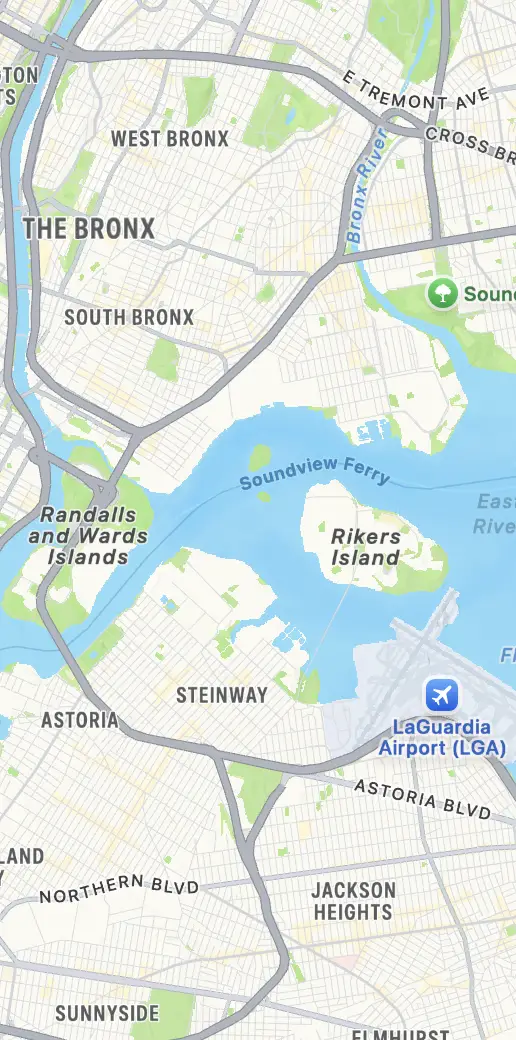
🗺A “Messenger tracker” site

A pin drawn by the page for any profile you type in. It reads nothing from Messenger.

On iPhone, Messenger suggests Always for live location to keep updating. Menu names may vary by app version.

When Messenger Shares Your Location

Messenger shares location when you tap the location option in a chat and send it. Live location keeps updating for a limited time unless you stop it. It is available on Android, iPhone and iPad, not on computers. Nobody can turn it on for you from another device.

Unwanted Sharing

Find a live share you forgot about

Open your recent chats and look for a live location message. If one is still active, stop sharing. If you see a share you didn't start, change your password.

Family Agreement

Share openly with people you trust

Location sharing works best when everyone knows it is on. Use live location in a family chat for a trip, then stop it. Anyone in the chat can stop sharing their own location.

Phone Settings

Turn off location for apps that don't need it

Your phone has a list of apps with location access. Review it every few months. On iPhone, open Settings, then Privacy and Security, then Location Services. On Android, open Settings, then Location, then App location permissions. Turn off access for apps you don't use. Menu names may vary by phone model.

Stop a Live Share
Open the chat where you shared your live location and choose to stop sharing. The other people in that chat stop seeing updates. If you don't remember which chat it was, look through recent conversations for a live location message. Menu names may vary by app version.
Check App Permission
Your phone controls whether Messenger can use location at all. On iPhone, go to Settings, then Messenger, then Location. On Android, open app settings for Messenger and choose Permissions. Pick Never or While Using the App if you only want to share location when you send it yourself.

Common Location Questions

1

Pins in Chats

A location you sent as a pin stays in the chat history. Delete or unsend the message if you no longer want it there, and remember others may have already seen it.
2

Photos and Posts

Photos can carry location data, and posts or check-ins on Facebook can show where you were. Review your audience settings before you share.
3

Family Sharing

If your family wants to share locations, agree on it openly and use live location in a chat or your phone's built-in sharing. Everyone can see it is on and stop it whenever they want.
4

IP Address in One-to-One Calls

In one-to-one calls your IP address is shared with the other device to connect the call. An IP address can show a broad area or internet provider, not your exact address.

Tips to Protect Your Location

  • Permission check

    Set Messenger location to While Using

    If you don't need Messenger to use your location in the background, choose While Using the App or Never. You can still send a location when you want to.

  • Live share

    Stop a live share when you arrive

    Live location is useful for meeting up or a trip home. When you've arrived, stop sharing in the chat so updates don't keep going.

  • Strangers

    Never send location to people you just met online

    Sharing where you are with someone you don't know offline is risky. Scammers and stalkers may ask for a location to build trust. Say no and report the account.

  • Photo metadata

    Check location data on photos before posting

    Phone cameras can save location in photo files. Turn off location for the camera if you don't want it, and review audience settings before you post photos in public places.

Location Privacy FAQ

Answers for Messenger Users

Next Steps

Next, learn what Messenger calls can reveal about you and how to keep unwanted callers away from your account.

More messenger guides: WeChat Security LINE Security QQ Security